
Outlook Not Receiving Emails? 10 Fixes to Try
Need emails to arrive in Outlook but they're not? This may occur due to a weak internet connection, account configuration, overfilled mailbox, or syncing problems with email. In some cases Outlook may be able to send mail but not receive new mail.
The good news is that most Outlook email issues can be resolved in a few easy steps. This is where you'll learn the reasons why Outlook isn't getting e-mails and what you can do to fix the most common ones.
Why Is Outlook Not Receiving Emails?
The first check if Outlook is not receiving email should be on the internet connection and Microsoft account. Sometimes, new messages may not show up in your mailbox due to temporary server problems, outdated applications, wrong passwords or mailbox size limits.
First check if new emails are being received in Outlook on the web before looking into advanced solutions. If they do, it could have to do with your Outlook app. If they don't, review your account, storage and email configurations.
10 Fixes for Outlook Not Receiving Emails
1. Check Your Internet Connection
If a user has a poor or weak internet connection, Outlook may be unable to connect to the mail server. If you get your app to open, your Inbox might not update.
Go to a website to check your internet connection. If the connection is weak, try to restart your router, or connect to another network. Then, re-open Outlook and see if new emails are showing up.
2. Refresh Your Outlook Inbox
There are times when Outlook email syncing temporarily gets disabled and you lose the email in your Inbox. Refreshing the mailbox can help re-establish the connection and download new mailboxes.
In the classic Outlook for Windows, go to the Send/Receive tab and choose Send/Receive All Folders. If you're in the new Outlook app, go with the sync / refresh option. Wait for several minutes to check for any new messages.
If your Outlook inbox isn't updating, try restarting the application as well, for a temporary glitch.
3. Check Your Junk Email Folder
Emails may arrive in Outlook, but not in your Inbox, and get moved to the Junk Email folder. This can occur if it flags an email as suspicious.
Check the Junk Mail folder for any missing e-mails. If you receive a legitimate e-mail, do not mark it as junk and if it's appropriate, add the sender to your safe senders list.
Also, verify that your blocked senders list doesn't contain important contacts that you may have accidentally blocked.
4. Make Sure Your Outlook Mailbox Is Not Full
A full mailbox can prevent you from receiving new emails. Depending on your account and storage limits, incoming messages may be rejected or delayed.
Check your available mailbox storage in Outlook or your Microsoft account settings. Delete unnecessary emails, empty the Deleted Items folder, and remove large attachments you no longer need.
If your Outlook mailbox is full, freeing up storage may allow new messages to arrive again.
5. Check Your Email Rules and Filters
Outlook has rules that you can set up to move incoming messages to other folders, archive them, or even delete them. Therefore, you might assume that Outlook is not getting any email when it's just being moved to another location.
Check rules in Inbox, and search in any folder for a lost message. See if any of the rules are removing emails from your Inbox folder.
Turn off rules that are no longer required, particularly if you have made accidental rules.
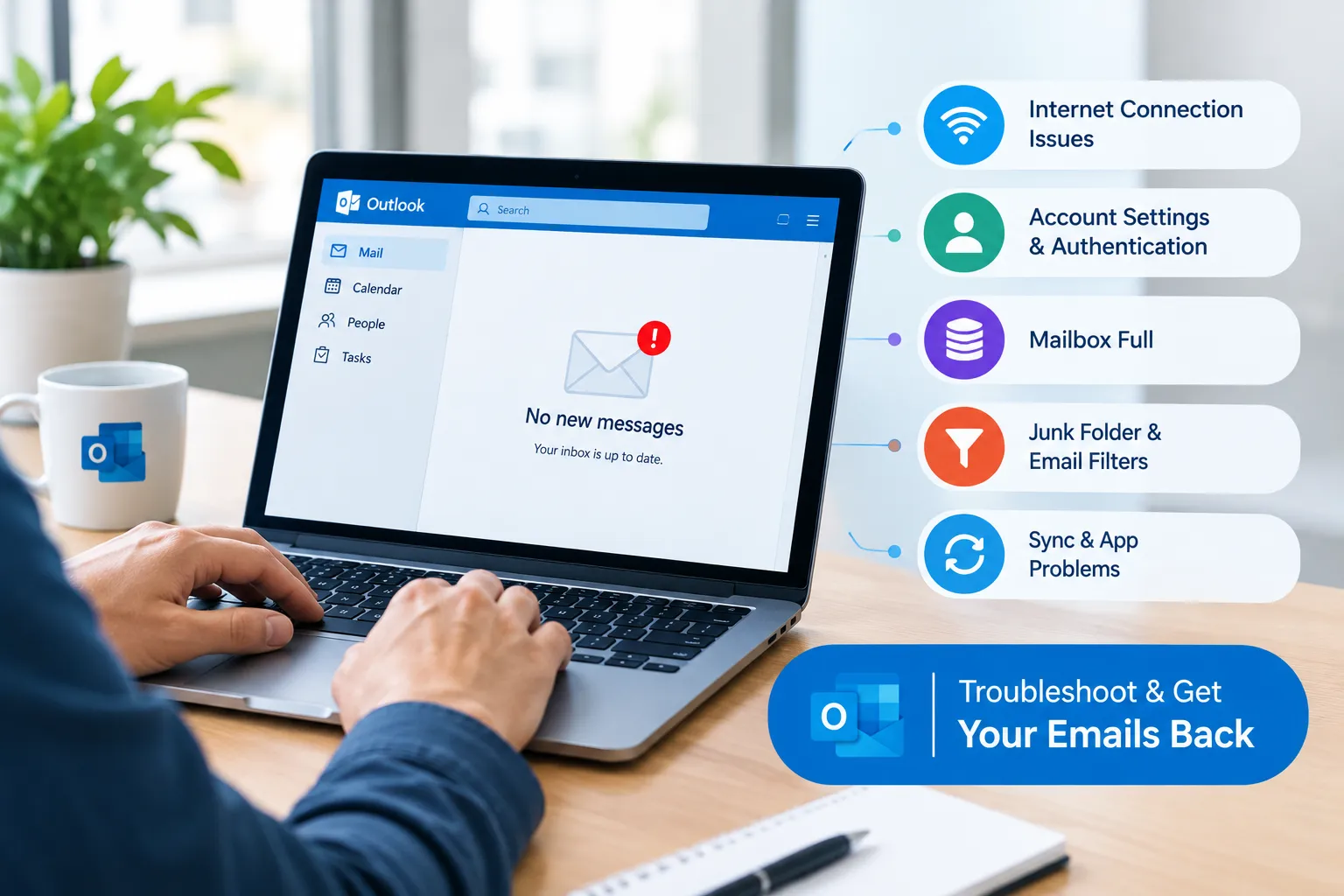
6. Fix Outlook Send and Receive Errors
The ability to download new messages may be prevented in Outlook send & receive errors. The errors may be due to connection problems, account authentication errors or setting errors.
Check if Outlook is warning of a connection or password. If you're using classic Outlook, go to the Send/Receive tab and view the error details. Perform recommended troubleshooting steps from the message.
Repeat steps 1 through 6 if an error remains; restart Outlook and see if there are any reported disruptions by checking the status of Microsoft's services.
7. Recheck Your Password and Account Settings
When Outlook ceases to get e-mail after the password change, it might still be using old sign-in data.
If Outlook prompts you to authenticate, sign in again. To remove old saved credentials, use the correct account settings and log in with your current password, if needed.
If the organization is a school or work account, they might also need more authentication. If you are unable to reconnect, please reach out to your IT administrator, instead of repeatedly adjusting the account settings. If the issue continues to affect your team's work, professional helpdesk services can help diagnose account access and email configuration problems.
8. Update the Outlook Application
An outdated Outlook app could have some bugs that can impact email syncing or downloading. Known issues and compatibility can be addressed by installing available updates.
In classic Outlook, go to File, Office Account, and then click on Update Options and then Update Now (when available). Look for updates in the new Outlook app via the Microsoft Store or approved update process for your organisation.
Restart Outlook and see if you're getting new mail.
9. Repair Your Outlook Account or Application
If Outlook fails to receive emails when you have a valid internet connection, and have the correct account information, you might want to fix the account or application.
If you're using classic Outlook, go to account settings, and search for account repair. Another alternative for supported Microsoft 365 installations on Windows is by using Windows Settings to access the installed Office apps and select a repair option.
Try Quick Repair if possible. If required, try Online Repair which might take longer to repair and require a re-sign-in.
10. Check Whether Outlook Is Working on the Web
Log in to your Outlook on the web account. If the new emails are not showing up online but they are on the desktop application, it is probably an app, setting or synchronization problem.
If your emails are not appearing in both the app and web, please check your mailbox storage, junk, rules and mailbox status. The interruption of the service may also be in effect or there may be a problem with the sender's delivery.
If your administrator is not sure where the mail-flow settings are, he or she may need to check the mail-flow settings, if your mail is not being sent anywhere. For recurring email disruptions that affect business operations, managed IT services can help businesses monitor their IT environment, troubleshoot recurring issues, and reduce avoidable downtime.
Frequently Asked Questions
Why is Outlook not receiving emails?
Outlook may stop receiving emails because of internet issues, a full mailbox, incorrect account settings, syncing errors, or messages being redirected by filters. Check these areas before attempting more advanced fixes.
How do I fix an Outlook inbox that is not updating?
Refresh or sync your inbox, restart Outlook, and check your internet connection. If the problem continues, compare your inbox with Outlook on the web to identify whether the issue is limited to the application.
Can a full mailbox stop Outlook from receiving emails?
Yes. When your mailbox reaches its storage limit, new messages may fail to arrive. Delete unnecessary emails, empty Deleted Items, and review your account's storage usage.
Why are my Outlook emails going to Junk?
Outlook's spam filters may classify legitimate messages as junk. Check the Junk Email folder, mark valid messages as not junk, and add trusted senders to your safe senders list.
What should I do if Outlook stops receiving emails after a password change?
Sign in with your current password when prompted. If Outlook continues to fail, refresh your account authentication and check whether your account requires additional verification.